

How To Start A Free Blog On Blogger [Complete Guide]
Here at MyBloggerGuides We have written about many blogger widgets that you can use to make your blogger blog Good Looking and for make attractive. Today in this article we are going to share How To Create A Blog On Blogger? This tutorial is fully guide for beginners. One of my favorite methods for creating a blog is to use your own custom domain and host it free on Blogger Platform.


There are many blogging platforms which offer users the ability to create free blogs. If you are looking for free blog creation, my suggestion would be to start blogging from BlogSpot.com [Blogger.com]
How To Create A Blog On Blogger?
Blogger is an online service owned by Google that publishes single or multi-user blogs created entirely by the user. The service has quickly become the preferred choice of many novice bloggers and is one of the easiest methods of creating and publishing a blog for free. If you are unfamiliar with the service, this article will teach you how to set up an account and create a blog on Blogger.com
The following instructions will show you how to make a blog using Blogger.com.
You will need a Google email address to use Blogger.com
Signing Up For Blogger Blog
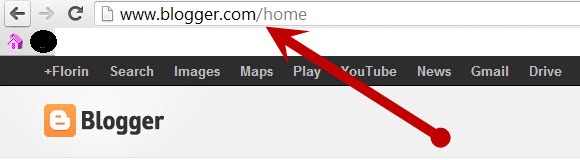
- Go to www.blogger.com using web browser of your choice.
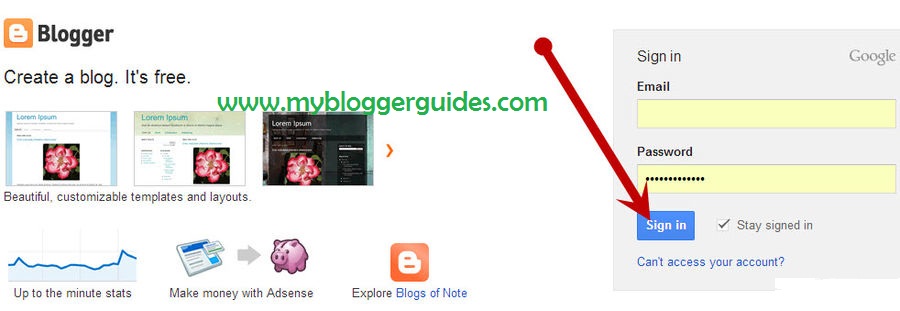
- Enter your Google Email and password into the Sign In box on the right side of the screen.
- Click Sign In; [Optional: If you do not want your name on your blog, click Switch to a limited Blogger Profile]
- Confirm Profile by clicking the Continue to Blogger button at the bottom of the screen.
Create Blog On Blogger Platform
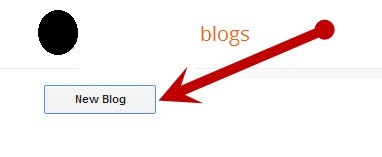
- Now Click On “Create Your Blog Now”.
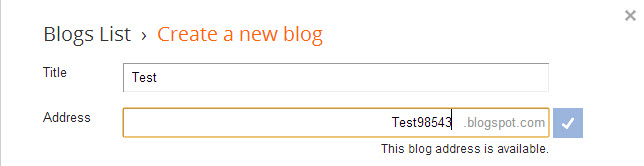
- Select a “Blog title” and an available URL for your blog. You can check if the URL you are considering is available by clicking “Check Availability”(if it is unavailable try adding more letters and don’t use things like hyphens,under scores, colons etc).
- Enter the word verification and click continue.
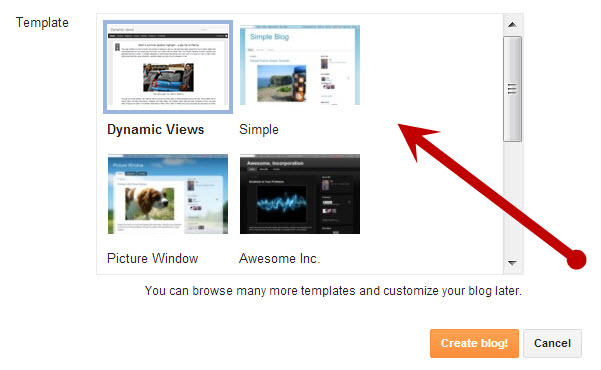
- Choose a starter template, which will act as the basic design/layout of your blog.
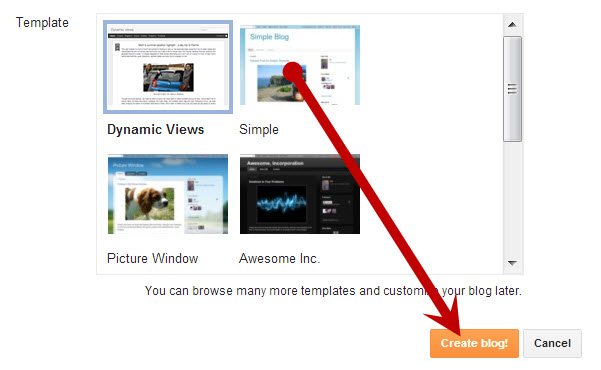
- Now Click On “Create Blog”
Start Blogging On Blogger Platform
- You can create new blog posts, edit posts, and edit pages from under the “Posting” tab.
- The title of your post goes in the text box next to “Title”.
- The body of your post will get entered into the “Compose” text editor, where you will also be able to access basic text editor functions such as font size, text color, the ability to insert links.
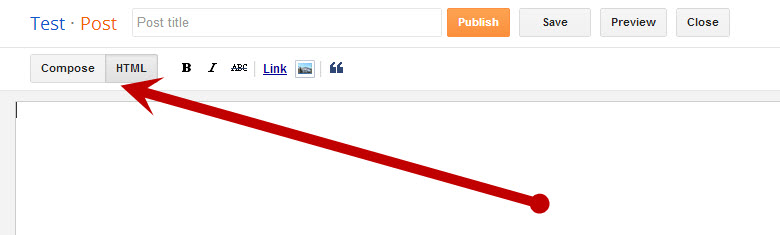
- You can also use the “Edit HTML” tab to insert your post in HTML format, if you prefer.
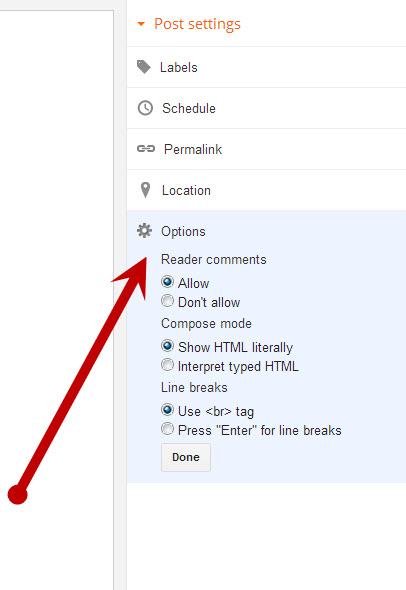
- The “Post Options” section located underneath the “Compose” text editor will allow you to enable reader comments, HTML settings, and post the time and date.
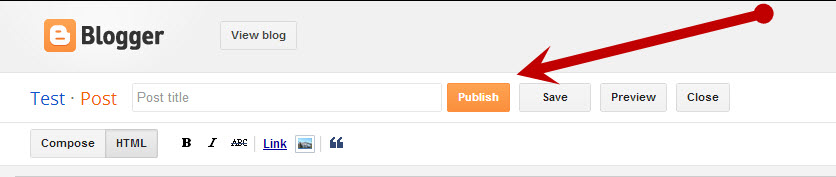
- You can now either select “Save Now” to save your post, “Preview” to preview your post before publishing to your blog, or “Publish Post” to publish your post directly to your newly created blog.
- If you wish to change the design of your blog from the starter template you selected when initially creating your blog, you can do so under the “Design” tab.
- From within the “Design Tab” you will be able to edit Page Elements, HTML, and change your template with Temple Designer.
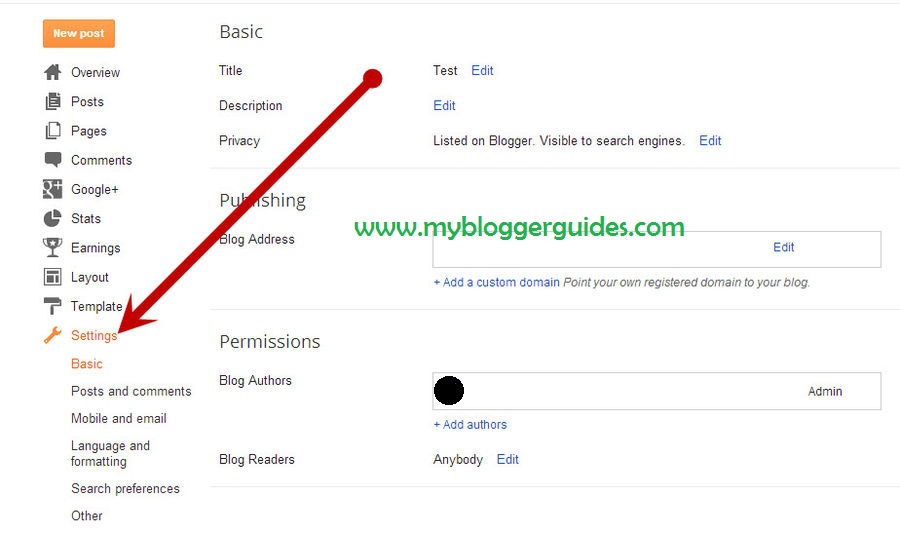
- If you want to adjust other settings such as who is able to view, contribute to, or comment on your blog etc, click the “Settings” tab.
- You can adjust publishing, comments, archiving, permissions, and all other settings from within the sub-tabs located under the main “Settings” tab.
- You can add new authors that are able to contribute to and edit your blog by clicking the “Settings” tab> “Permissions” sub-tab, and selecting “Add Authors”.
- That’s it.


Recommended Stylish Widgets
- Stylish Contact Form for Blogger! Add to Static Page.
- Stylish Popup Subscription Box for Blogger.
- WordPress Like Floating Social Sharing Counter Buttons for Blogger.
Conclusion:
This post is meant for every reader out there who does not already have a blog and is looking forward to creating a free blog. I started my blogging journey with BlogSpot and now some of my blog is on WordPress but according to me blogger platform is better than WordPress because we can do editing and play with codes for giving a professional look.
Now you know how to use Blogger.com to make yourself a personal or professional blog, and now it’s your turn to share this post on social networks and give us feedback by using comment box. Thank you. Keep Visiting. Happy Blogging.
Thank You! Stay Blessed!
Thank You! Stay Blessed!
Contents
