
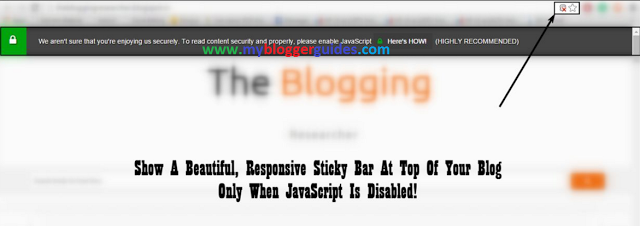
Force Readers to Enable JavaScript in Browsers
How To Force Readers to Enable JavaScript in Browsers?
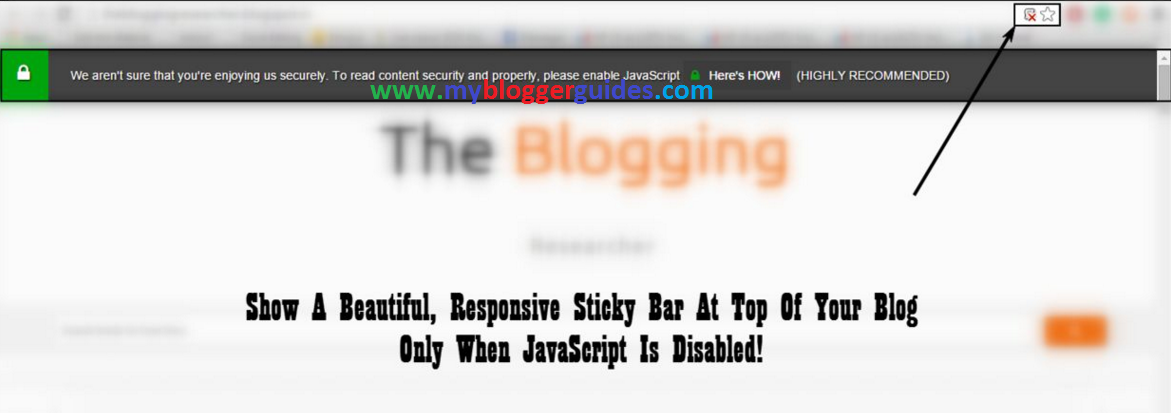
Many of the peoples always keep “JavaScript” disabled to save their Data (MB) and time if they have a slow connection. So, to force your blog’s visitors to enable JavaScript today we’re here to help you. We have finally found a way for forcing your visitors to enable JavaScript on their browsers. As we have discussed above, We have included this post in our series that is about HTTPS of the blogger because it will solve your problem of sending users from HTTP to HTTPS if the user has JavaScript disabled in its web browser (because we are forcing him to enable JavaScript and if you have added this JavaScript in your browser, then it will work when viewer will enable JavaScript).
Series Posts >>>
Today, we will do a minor change in your blog that will help you in a significant amount. We will display a beautiful sticky bar when JavaScript is disabled in your blog’s visitor’s browser. You can display any message on this notification bar, for example, the text, forcing them to enable JavaScript. Below we have discussed some features of this Notification bar before starting the tutorial.
Awesome Features Of This Noti-Bar
- Responsive and Cool Design.
- Pro Look.
- With Hover Effect.
- Security Touch.
- Force Readers to Enable JavaScript.
How To Add This Notification Bar to Blogger Blog?
- Go To Blogger >> Templates >> Edit HTML.
- Now Search for <body> tag by pressing CTRL+F and paste the following code just below of this tag.
<noscript>
<style>
.noti-https:before { content: "f023"; font-family: FontAwesome; background: #00A50D; padding: 22px; position: relative; left: -22px; font-size: 22px; } .noti-https a:hover:before { color: #FFF; } .noti-https a:before { content: "f023"; font-family: FontAwesome; color: #00A50D; margin-right: 8px; } .noti-https a:hover { background: #00A50D; color: #FFF; box-shadow: 0 0 0; } .noti-https a { background: #3D3D3D; padding: 9px; font-size: 14px; transition: .3s; color: #FFF; text-shadow: 0 0 0; font-family: sans-serif; text-decoration: none; text-transform: capitalize; position: relative; top: 0px; } .noti-https { background: #444; overflow: hidden; color: #FFF; font-family: sans-serif; text-shadow: 1px 1px 2px #000; padding: 21px; box-shadow: 0 0 7px 1px #828282, inset 0px 0px 27px -7px #000; z-index: 999999; position: fixed; width: 100%; padding-top: 15px; font-size: 14px; } span.reco-bg { margin-left: 16px; } .reco-bg:nth-child(2) { margin-left: 6px!important; } @media only screen and (max-width: 1122px) { .noti-https { line-height: 34px; } .noti-https:before{content: none!important} .noti-https { padding-right: 29px!important; width: 94%!important; } }
</style>
<div class=”noti-https”> We aren’t sure that you’re enjoying us securely. To read content security and properly, please enable JavaScript <a class=”btn-bg” href=”http://enable-javascript.com/”> Here’s HOW! </a> <span class=”reco-bg”> (HIGHLY RECOMMENDED) </span>
</div>
</noscript>
- Now Save your Template and below is some customization tips. Follow them if you want do some customization in this sticky bar.
Customizations:
- You can change pink color words for editing the text on the bar.
- You can change blue color words to change URL you want on the bar.
Did you know? You can add anything you want on your blog when JavaScript is disabled on the user’s browser if you include the whole thing’s code inside yellow highlighted code.
Conclusion:
Contents
