
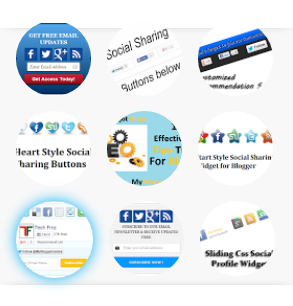
Add Circle Image Styles To Popular Posts in Blogger
 |
| Circle Image Style For Popular Posts |
Actually popular post widget help you to identify popular post in your blog. In blogger already have this widget , so we can do some customize for make it attractive. This include with nice hover effect too.
How To Add Circle Image Style To Popular Posts in Blogger
Steps For Adding Circle Image Style To Popular Posts in Blogger
- Go To Blogger Dashboard >> Templates >> EDIT HTML.
- Now Search For ]]></b:skin> tag and paste below code just above of this tag.
#PopularPosts1 {
max-width: 300px}
#PopularPosts1 dd {
float: left;
border-bottom: none;
margin: 8px 8px 0 8px;
background: none;
display: block;
padding: 0}
#PopularPosts1 img {width:75px;height:75px;border-radius:50px;font-size:20px;color:#fff;line-height:100px;text-align:center;}
#PopularPosts1 img:hover {
width:77px;height:77px;border-radius:50px;font-size:20px;color:#fff;line-height:100px;text-align:center;
cursor: pointer;-webkit-box-shadow: 0 0 20px #0cb1f6, inset 0 0 20px #0cb1f6;
-moz-box-shadow: 0 0 20px #0cb1f6, inset 0 0 20px #0cb1f6;
box-shadow: 0 0 20px #0cb1f6, inset 0 0 20px #0cb1f6;}
- Now Search for <b:widget id=’PopularPosts1′ locked=’false’ title=’Popular Posts’ type=’PopularPosts’>
- After you found, scroll below until you see this code </b:widget>
- Now delete it start to end.
- After delete is place below code in same place.
<b:widget id=’PopularPosts1′ locked=’false’ title=’Popular Posts’ type=’PopularPosts’>
<b:includable id=’main’>
<b:if cond=’data:title’>
<h2>
<data:title/>
</h2>
</b:if>
<div class=’widget-content popular-posts’>
<ul>
<b:loop values=’data:posts’ var=’post’>
<dd>
<b:if cond=’data:showThumbnails == "false"’>
<b:if cond=’data:showSnippets == "false"’>
<!– (1) No snippet/thumbnail –>
<a expr:href=’data:post.href’><data:post.title/></a>
<b:else/>
<!– (2) Show only snippets –>
<div class=’item-title’>
<a expr:href=’data:post.href’><data:post.title/></a>
</div>
<div class=’item-snippet’>
<data:post.snippet/>
</div>
</b:if>
<b:else/>
<b:if cond=’data:showSnippets == "false"’>
<!– (3) Show only thumbnails –>
<div class=’item-thumbnail-only’>
<b:if cond=’data:post.thumbnail’>
<div class=’item-thumbnail’>
<a expr:href=’data:post.href’ target=’_blank’>
<img alt=” border=’0′ expr:height=’data:thumbnailSize’ expr:src=’data:post.thumbnail’ expr:width=’data:thumbnailSize’/>
</a>
</div>
</b:if>
<div class=’item-title’>
<a expr:href=’data:post.href’><data:post.title/></a>
</div>
</div>
<div style=’clear: both;’ />
<b:else/>
<!– (4) Show snippets and thumbnails –>
<b:if cond=’data:post.thumbnail’>
<a expr:href=’data:post.href’ expr:title=’data:post.title’ rel=’bookmark’><img expr:alt=’data:post.title’ expr:src=’data:post.thumbnail’ height=’60px’ width=’60px’/></a>
<b:else/>
<a expr:href=’data:post.href’ expr:title=’data:post.title’ rel=’bookmark’><img alt=’no image’ height=’60px’ src=’http://1.bp.blogspot.com/-8w8IJAJR9Tk/VhXohDSlOdI/AAAAAAAADvI/MT7r0x0dqro/s1600/mybloggerguides.com-default-image.jpg’ width=’60px’/></a>
</b:if>
</b:if>
</b:if>
</dd>
</b:loop>
</ul>
<div class=’clear’ />
<b:include name=’quickedit’ />
</div>
</b:includable>
</b:widget>
- Now save your template. You are done.
- Now open your blog in new tab and also tell us about your experience in comment box.
Our Recommended Blogger Widgets
- WordPress Like Floating Social Sharing Widget for Blogger with Counter.
- AllInOne Admin Box Widget with Social buttons and Subscription Box.
- Add Sticky Notification Bar To Blogger with Show/Hide Button.
- Stylish Contact Form For Blogger! Add to Static Page, Responsive & Pro Version.
- Cute & Stylish Email Popup Subscription Widget.
Conclusion:
Thank You! Stay Blessed!
Contents
