
Add 3 Column Footer Bar To Blogger

- Go to blogger Dashboard.
- Click On Edit HTML
Note: (Before Doing Any Editing Make sure Backup your template first.)
- Add Check Mark in Expand Widget.
- Find this code by Pressing CTRL+F <b:section class=’footer’ id=’footer’/>
- Replace <b:section class=’footer’ id=’footer’/> With Below Code.
<div id=’footer-column-container’>
<div id=’footer2′ style=’width: 30%; float: left; margin:0; text-align: left;’>
<b:section class=’footer-column’ id=’col1′ preferred=’yes’ style=’float:left;’/></div>
<div id=’footer3′ style=’width: 40%; float: left; margin:0; text-align: left;’>
<b:section class=’footer-column’ id=’col2′ preferred=’yes’ style=’float:left;’/>
</div><div id=’footer4′ style=’width: 30%; float: right; margin:0; text-align: left;’>
<b:section class=’footer-column’ id=’col3′ preferred=’yes’ style=’float:right;’/></div>
<div style=’clear:both;’/><div id=’footer-bottom’ style=’text-align: center; padding: 10px; text-transform: lowercase;’>
<b:section class=’footer’ id=’col-bottom’ preferred=’yes’><b:widget id=’Text2′ locked=’false’ title=” type=’Text’/>
</b:section></div><div style=’clear:both;’/></div>
- Now Find This Tag ]]></b:skin> By Pressing CTRL+F.
- Paste Below Code Just Above Of ]]></b:skin> tag.
/* Footer by www.mybloggerguides.com */
#footer-column-container {clear:both;}
#footer-column-container h2{font-size:18px;text-align:left;color:#ddd;Times New Roman",Times,serif; font:normal bold 18px Arial,Georgia,"text-transform:none}
.footer-column {padding: 10px;}
- Now Save Your Template.
- That’s it. You have added this footer bar to blogger blog.
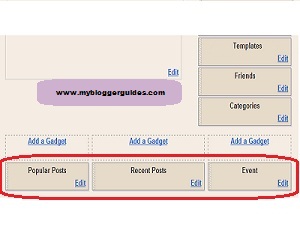
- Now Go To Layout section and add some widgets to footer bar and that’s it.
Conclusion:
Contents
