
Black & Blue Color Responsive Drop Down Menu for Blogger [V4]
Hey guys. As for your request, we are today herewith another Responsive Dropdown Menu Bar for Your Blogger Blog. This menu bar is fully design with pure CSS and HTML coding so this is fast loading. There are many responsive drop down menu which you can find on another blog but we are sharing here 4th Responsive drop down menu bar/Navigation Bar, All are made up by Pure CSS and HTML coding.
The task of Designing a responsive blogger template starts with the Header and the most important part of Header is the top navigation menu that provides useful links to your inner pages.
Responsive drop down menus are viral now and can be seen widely implemented on all wordpress blogs and even mashable.com. Today we are releasing the first ever tutorial on designing a flexible Drop down navigation menu for BlogSpot blogs without using a single script or image! The best part is that it is not just a flat menu but with a drop down list. This makes our tutorial distinguished from those several codes and plugins proposed by some Geeky friends at Github. Using simply HTML5 <nav> tags and CSS3 :checked selectors, we managed to design a menu that we hope would be useful to the blogger community because it is really an efficient menu that is compatible with all major browsers and uses no Jquery at all!
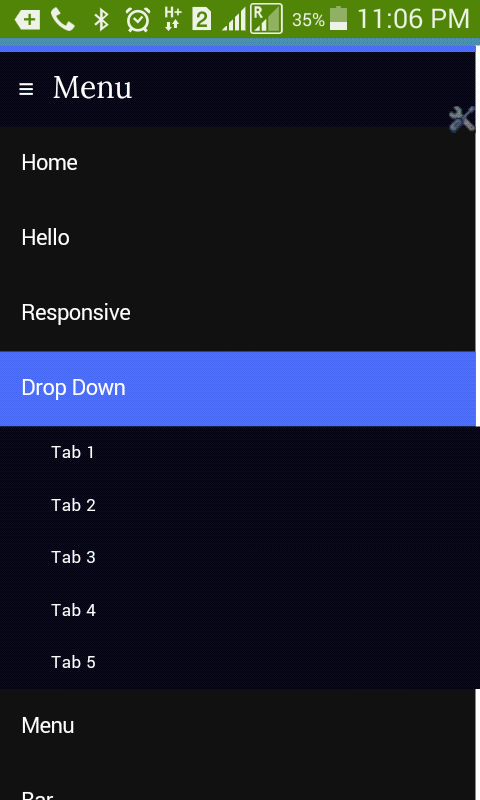
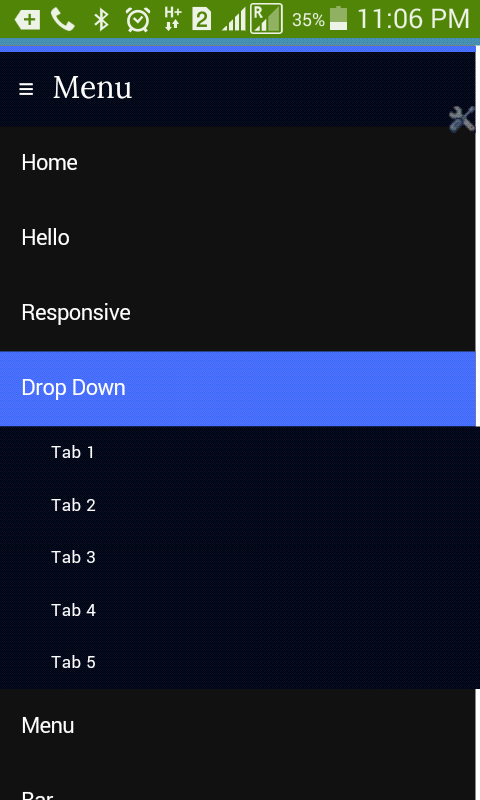
The screenshots below are taken using my Android Phone to give you an idea of how your blog menu would look like in mobile screen. The menu auto adjusts itself using CSS3 media queries which we already discussed in first part of this series.
Check Live Demo Here
Tip: If you are using Desktop computer then simply increase and decrease your browser window manually using your mouse and observe how menu toggles between two different styles and expands/collapses when clicked.
Disable Mobile Template First.
- Blogger > Template
- click the gear icon
- Select No. Show desktop template on mobile devices.
- Save
How To Add Responsive Drop Down Menu in Blogger?
- Go To blogger > Template
- Backup your template
- Click Edit HTML
- Search for these lines or similar. These lines of code exist at the top section of your template.
<b:if cond=’data:blog.isMobile’>
<meta content=’width=device-width, initial-scale=1.0, user-scalable=0′ name=’viewport’/>
<b:else/>
<meta content=’width=1100′ name=’viewport’/>
</b:if>
Replace all the above code with our custom Meta ViewPort code:
<meta content=’width=device-width, initial-scale=1, maximum-scale=1′ name=’viewport’/> <meta content=’text/html; charset=UTF-8′ http-equiv=’Content-Type’/>
5. Now Search for </b:skin>. Click the black arrow to expand the code.
6. Paste the following Styles just above </b:skin>
/*—–Responsive Drop Down Menu by MBG —-*/body {margin: 0px;}#menuv2mbg{background: #03081A;color: #FFF;height: 50px;border-bottom: 4px solid #476EFC;border-top: 4px solid #476EFC;}#menuv2mbg ul,#menuv2mbg li{margin:0 auto;padding:0 0;list-style:none}#menuv2mbg ul{height:55px;width:100%}#menuv2mbg li{float:left;display:inline;position:relative;font:15px Arial;}#menuv2mbg a{display: block;line-height: 50px;padding: 0 14px;text-decoration: none;color: #FFF;}#menuv2mbg li a:hover{color: #FFF;-webkit-transition: all .1s ease-in-out;-moz-transition: all .1s ease-in-out;-ms-transition: all .1s ease-in-out;-o-transition: all .1s ease-in-out;transition: all .1s ease-in-out;background: #476EFC;}#menuv2mbg input{display:none;margin:0 0;padding:0 0;width:80px;height:30px;opacity:0;cursor:pointer}#menuv2mbg label{font: Arial;display:none;width:35px;height:36px;line-height:50px;text-align:center}#menuv2mbg label span{font-size:20px;position:absolute;left:35px}#menuv2mbg ul.menusv2mbg{height: auto;overflow: hidden;width: 120px;background: #03081A;position: absolute;z-index: 99;display: none;}#menuv2mbg ul.menusv2mbg li{display: block;width: 100%;font:normal 0.8em Arial;text-transform: none;text-shadow: none;}#menuv2mbg ul.menusv2mbg a{color: #FFF;line-height: 35px;}#menuv2mbg li:hover ul.menusv2mbg{display:block}#menuv2mbg ul.menusv2mbg a:hover{background: #476EFC;color: #FFF;-webkit-transition: all .1s ease-in-out;-moz-transition: all .1s ease-in-out;-ms-transition: all .1s ease-in-out;-o-transition: all .1s ease-in-out;transition: all .1s ease-in-out;}
@media screen and (max-width: 800px){
#menuv2mbg{position:relative}
#menuv2mbg ul{background:#111;position:absolute;top:100%;right:0;left:0;z-index:3;height:auto;display:none}
#menuv2mbg ul.menusv2mbg{width:100%;position:static;padding-left:20px}
#menuv2mbg li{display:block;float:none;width:auto; font:normal 0.8em Arial;}
#menuv2mbg input,#menuv2mbg label{position:absolute;top:0;left:0;display:block}
#menuv2mbg input{z-index:4}
#menuv2mbg input:checked + label{color:white}
#menuv2mbg input:checked ~ ul{display:block}
}
7. Now search for <body> Just below it paste the follow code which will create the menu structure:
<nav id=’menuv2mbg’><input type=’checkbox’/><label>≡<span>Menu</span></label><ul><li class=’highlight’><a href=’/’>Home</a></li><li><a href=’#’>Hello</a></li><li><a href=’#’>Responsive</a></li><li><a href=’#’>Drop Down</a><ul class=’menusv2mbg’> <li><a href=’#’>Tab 1</a></li> <li><a href=’#’>Tab 2</a></li> <li><a href=’#’>Tab 3</a></li> <li><a href=’#’>Tab 4</a></li> <li><a href=’#’>Tab 5</a></li> </ul> </li> <li><a href=’#’>Menu</a></li><li><a href=’#’>Bar</a><ul class=’menusv2mbg’><li><a href=’#’>Tab 1</a></li> <li><a href=’#’>Tab 2</a></li> <li><a href=’#’>Tab 3</a></li></ul></li><li><a href=’#’>Get This Menu Bar</a></li></ul></nav>
- I am sure you know how to create new tabs but to create a tab for a drop down list use the following format:
Paste the following code below <ul> or above </ul> to create a drop down list:
<li><a href=’#’>Drop Down</a> <ul class=’menusv2mbg’> <li><a href=’#’>Tab 1</a></li> <li><a href=’#’>Tab 2</a></li></ul> </li>
Now play with your browser window and adjust its size manually to see it working just perfectly! 🙂
See Also Another Stylish Widget
- Stylish Contact Form for Blogger! Add to Static Page.
- Stylish Popup Subscription Box for Blogger.
- WordPress Like Floating Social Sharing Counter Buttons for Blogger.
Conclusion:
Contents
