

Stylish Elegant HTML Sitemap! Add to Blogger

A sitemap page is one of the must have pages on every blog. It helps in a number of ways to increase the user engagement on our blog and makes it more user friendly.
By using the sitemap page, visitors of our blog can easily navigate through the all of our published content under different categories they are interested in.
Ultimately our blog’s page-views increase and bounce rate decrease. Good for SEO, no? 🙂
Also Read : Stylish Responsive Popular Posts Blogger Widget
After using the sitemap page on my blog for a long time now, I can say it is one of the most visited pages on my blog. When visitors find out the content on your blog more useful, they hunt for more content like this on your blog and if a sitemap page is available on your blog, what else do they need more?
This tutorial has been requested multiple times and I could not come up with it on time due to some personal reasons. Today I am sharing the exact code I am using on my blog for sitemap.
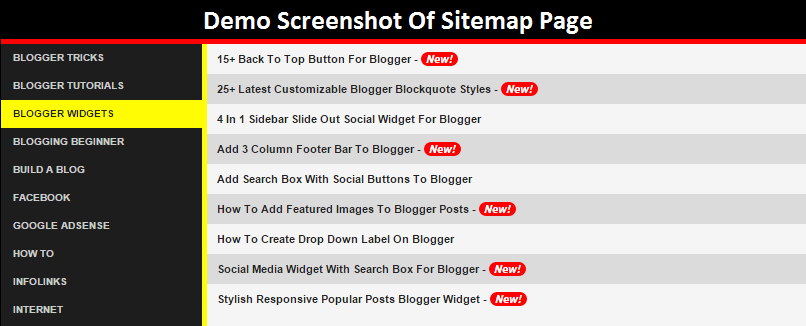
Live demo can be seen by visiting the sitemap page of this blog.
Please note that I did not add any new functionalities or modified this sitemap code but I just played with the CSS code to give it an elegant look and to match the color theme of my blog.
You can do the same and I’ll explain it in detailed steps. Lets begin the process.
Credits-
The code I am going to share is issued by +Taufik Nurrohman. He is from Indonesia and he has done so much for blogger platform users by releasing the amazing scripts for free. We owe to him.
How To Add Elegant Style Sitemap To Blogger Page
- Go to Blogger Dashboard.
- Pages >> New Page.
- Now change the page settings and switch to HTML mode. Enter the name of the page as “Sitemap” in the Title area to get the same permalink for your new page. See the screenshot below.
- Now Copy And Paste below code.

<div id=”tabbed-toc”>
<span class=”loading”>Loading, please wait for a moment…</span></div>
<br />
<script type=”text/javascript”>
var tabbedTOC = {
blogUrl: “https://mybloggerguides.com”, // Enter your blog URL
containerId: “tabbed-toc”, // Container ID
activeTab: 1, // The default active tab index (default: the first tab)
showDates: false, // `true` to show the post date
showSummaries: false, // `true` to show the posts summaries
numChars: 200, // Number of summary chars
showThumbnails: false, // `true` to show the posts thumbnails (Not recommended)
thumbSize: 40, // Default thumbnail size
noThumb: “”, // A “no thumbnail” URL
monthNames: [ // Array of month names
“January”,
“February”,
“March”,
“April”,
“May”,
“June”,
“July”,
“August”,
“September”,
“October”,
“November”,
“December”
],
newTabLink: true, // Open link in new window. `false` to open in same window
maxResults: 99999, // Maximum post results
preload: 0, // Load the feed after 0 seconds (option => time in milliseconds || “onload”)
sortAlphabetically: true, // `false` to sort posts by published date
showNew: 7, // `false` to hide the “New!” mark in most recent posts or
//define how many recent posts are to be marked by changing the number
newText: ” – <em style=’color: white;padding: 1px 5px;border-radius: 20px;background-color: #F00;’>New!</em>” // HTML/CSS for
//the “New!” text
};
</script>
<script src=”https://googledrive.com/host/0B_PLgWpOK_wTazVMekZ3TTBiY2M/” type=”text/javascript”></script>
<style>
/*Sitemap */
#tabbed-toc {
width: 99%;
margin: 0 auto;
overflow: hidden !important;
position: relative;
color: #222;
border: 0;
border-top: 5px solid #FC0204;
background-color: #1D1D1D;
-webkit-transition: all 0.4s ease-in-out;
}
#tabbed-toc .loading {
display:block;
padding:5px 15px;
font:normal bold 11px Arial,Sans-Serif;
color:#FFF;
}
#tabbed-toc ul,
#tabbed-toc ol,
#tabbed-toc li {
margin:0;
padding:0;
list-style:none;
}
#tabbed-toc .toc-tabs {
width: 24.8%;
float: left !important;
}
#tabbed-toc .toc-tabs li a {
display:block;
font:normal bold 10px/28px Arial,Sans-Serif;
height:28px;
overflow:hidden;
text-overflow:ellipsis;
color:#ccc;
text-transform:uppercase;
text-decoration:none;
padding:0 12px;
cursor:pointer;
-webkit-transition: all 0.3s ease-in-out;
}
#tabbed-toc .toc-tabs li a:hover {
background-color: #515050;
color: #FFF;
}
#tabbed-toc .toc-tabs li a.active-tab {
background-color: #FFFC03;
color: #222;
position: relative;
z-index: 5;
margin: 0 -2px 0 0;
}
#tabbed-toc .toc-content,
#tabbed-toc .divider-layer {
width: 75%;
float: right !important;
background-color: #F5F5F5;
border-left: 5px solid #FFFC03;
-webkit-box-sizing: border-box;
-moz-box-sizing: border-box;
box-sizing: border-box;
-webkit-transition: all 0.3s ease-in-out;
}
#tabbed-toc .divider-layer {
float:none;
display:block;
position:absolute;
top:0; right:0; bottom:0;
}
#tabbed-toc .panel {
position:relative;
z-index:5;
font:normal normal 10px Arial,Sans-Serif;
}
#tabbed-toc .panel li a {
display: block;
position: relative;
font-weight: bold;
font-size: 11px;
color: #222;
line-height: 2.8em;
height: 30px;
padding: 0 10px;
text-decoration: none;
outline: none;
overflow: hidden;
-webkit-transition: all 0.3s ease-in-out;
}
#tabbed-toc .panel li time {
display:block;
font-style:italic;
font-weight:400;
font-size:10px;
color:#666;
float:right;
}
#tabbed-toc .panel li .summary {
display:block;
padding:10px 12px;
font-style:italic;
border-bottom:4px solid #275827;
overflow:hidden;
}
#tabbed-toc .panel li .summary img.thumbnail {
float:left;
display:block;
margin:0 8px 0 0;
padding:4px;
width:72px;
height:72px;
border:1px solid #dcdcdc;
background-color:#fafafa;
}
#tabbed-toc .panel li:nth-child(even) {
background-color: #DBDBDB;
font-size: 10px;
}
#tabbed-toc .panel li a:hover,
#tabbed-toc .panel li a:focus,
#tabbed-toc .panel li a:hover time,
#tabbed-toc .panel li.bold a {
background-color:#222;
color:#FFF;
outline:none;
-webkit-transition: all 0.3s ease-in-out;
}
#tabbed-toc .panel li.bold a:hover,
#tabbed-toc .panel li.bold a:hover time {
background-color:#222;
}
@media (max-width:700px) {
#tabbed-toc {
background-color:#fff;
border:0 solid #888;
}
#tabbed-toc .toc-tabs,
#tabbed-toc .toc-content {
overflow:hidden;
width:auto;
float:none !important;
display:block;
}
#tabbed-toc .toc-tabs li {
display:inline;
float:left !important;
}
#tabbed-toc .toc-tabs li a,
#tabbed-toc .toc-tabs li a.active-tab {
background-color:#222;
color:#ccc;
}
#tabbed-toc .toc-tabs li a.active-tab {
color:#000;
}
#tabbed-toc .toc-content {
border:none;
}
#tabbed-toc .divider-layer,
#tabbed-toc .panel li time {
display:none;
}
}
</style>
Editing and Customizations:-
1) To change the message which appears before the sitemap is loaded, change this “Loading, please wait for a moment…” line to your own.
2) Replace my blog URL with your blog URL by replacing https://mybloggerguides.com and those who are using the free blogspot domain name, change your country specific extension to .com at the end of the URL.
For example, change http://yourblog.blogspot.in to http://yourblog.blogspot.com where.in is a country specific TLDN for Indian users, got it?
3) Color scheme is yellow and you may like to change it to your blog’s color scheme. To change the yellow color just replace this #FFFC03 color code to your own which appears two times in the CSS code above.
Finally hit Publish button and visit your sitemap page to check if it is working or not. It should be 100% working for everyone.
Hide The Specific Labels And Show Selected Labels Only
Many of you guys may don’t like to show all of your labels if they are above 100+ so in that case, I have a simple solution to hide the unwanted labels from appearing and show only the selected ones.
This is possible with simple CSS code o please read the steps carefully and be ready to follow a boring task. 🙂
Step 1. Selecting The Labels For Hide.
Now start counting your labels. Yes you heard it right. :p
Because you need to note down the number of the label you want to hide. Usually counting starts from 1 but you have count from ZERO. It means your very first label is on number ZERO in the list and second label is on number two. Same goes on till the end.
Step 2. Add the Number Of Label To The Class Name
<style> .toc-tab-item-0, .toc-tab-item-1, .toc-tab-item-5, .toc-tab-item-7 { display: none !important; } </style>
In the above CSS code, I have selected the label number 1, 2, 4 and 6 to hide (Remember to count from ZERO=1). Use the above code as a reference and add all of the numbers of the labels like as I did in the example code above. Ask me in comments if you did not get it.After adding all those classes, go back to edit the sitemap page then just add this CSS code inside your sitemap page like as you have added the previous codes. Now update your page and see the results if they are as expected or not.
Also Read : Below Post Responsive About Admin Box For Blogger
Conclusion:
Contents
