
Select Text & Share it To Twitter Widget for Blogger
Wanna Learn How To Add Select Text and Share it To Twitter Widget in Blogger Blog? So don’t worry today we are here with Twitter gadget for your BlogSpot Blogger Blog that is one of a most beautiful and sufficiently productive to help you increase more exposure to your blog with the assistance of Twitter. So In this post, we learn how to add select text and share it to twitter widget in blogger blog.
See Also Another Stylish Widget
- Stylish Contact Form for Blogger! Add to Static Page.
- Stylish Popup Subscription Box for Blogger.
- WordPress Like Floating Social Sharing Counter Buttons for Blogger.
Find Our Latest Blogger Widgets Here.
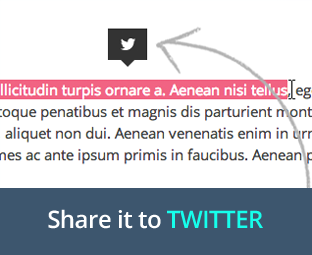
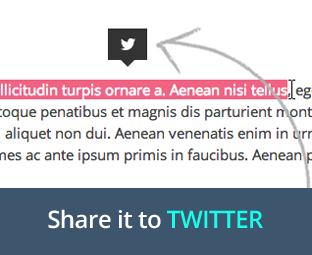
This is an efficient twitter widget for blogger blog which makes it easy for your readers to share any piece of text to twitter. This widget allows your blog visitors to tweet selected text on twitter easily. Whenever a visitor visit your blog and select any line of text a small black colored twitter tweet button will be visible now if your readers want that selected line to be tweeted on twitter then they just have to click on that black colored twitter button.
How to Install this widget?
.MBGSharetip { display:none; top:0; background:#333; color:#f16786; width:40px; height:32px; position:absolute; margin-left:-20px; opacity:0; filter:alpha(opacity=0); z-index:99; -webkit-transition:all .3s ease; -moz-transition:all .3s ease-in-out; -o-transition:all .3s ease; transition:all .3s ease-in-out; } .MBGSharetip span { position:absolute; content:” “; border:solid rgba(0,0,0,0); height:0; width:0; top:100%; border-top-color:#333; left:50%; -webkit-transition:all .3s ease; -moz-transition:all .3s ease-in-out; -o-transition:all .3s ease; transition:all .3s ease-in-out; border-width:7px; margin:0 0 0 -7px; } .MBGSharetip a { color:#f16786; } .MBGSharetip:hover { background:#3D566E; } .MBGSharetip:hover span { border-top-color:#3D566E; } .tooltipContainer { position:relative; display:block; width:100%; height:100%; top:0; left:0; } .tooltipContainer a { width:100%; background:transparent url(http://4.bp.blogspot.com/-HCutv6Nw8iM/VK_Q-v7WT1I/AAAAAAAAFTY/rbxVAhvs_dM/s1600/sprites.png) 0 0 no-repeat; left:0; top:0; height:100%; text-decoration:none; display:block; padding:0; } .sharingLink { display:block; position:absolute; text-indent:-9999px; }
After adding the above CSS codes, again in the template search for ending </head> tag and just above it paste the following jQuery code:
<script type=”text/javascript”> /*<![CDATA[*/ $(document).ready(function() { textToShare = ”; $(document).mousemove(function(m) { generateTooltipPosition(); });});$(document).mouseup(function() { $(document).mousemove(function(m) { generateTooltipPosition() }); var textToShare = getTextToShare(); var MBGSharetip = document.getElementById(“MBGSharetip”); if (textToShare != ”) showMeTooltip();});$(document).click(function() { var textToShare = getTextToShare(); var tooltipTitle = null; var newTooltipTitle = $(“#MBGSharetip”).attr(“title”); if (newTooltipTitle == “”) return; if (newTooltipTitle !== tooltipTitle) $(‘#MBGSharetip’).animate({ opacity: 0 }, 30); if (textToShare != “”) showMeTooltip();});$(window).resize(function() { if ($(‘#MBGSharetip’).show()) { $(‘#MBGSharetip’).animate({ opacity: 0 }, 30); }});function showMeTooltip() { var pageURL = window.location.toString(); var twitterLink = “https://twitter.com/intent/tweet?text=” + getTextToShare() + “&via=” + twitterAccount + “&url=” + pageURL; $(‘#MBGSharetip’).show(); $(‘#MBGSharetip’).animate({ opacity: 1 }, 30); $(‘#sendToTwitter’).attr(‘href’, twitterLink);}function getTextToShare() { shareTxt = ”; if (window.getSelection) { shareTxt = window.getSelection(); generateTooltipPosition(); } else if (document.getSelection) { shareTxt = document.getSelection(); generateTooltipPosition(); } return shareTxt;}function generateTooltipPosition() { var selection = window.getSelection && window.getSelection(); if (selection && selection.rangeCount > 0) { range = selection.getRangeAt(0); pos = $(window).scrollTop(); selection_text = selection.toString(), rect = range.getBoundingClientRect(); $(‘#MBGSharetip’).css({ top: (rect.top + pos – 20) – 32 + ‘px’, left: rect.left + (rect.width / 2) + ‘px’, }); }}/*]]>*/</script>
Now lastly, to display the widget we need to add the HTML code in the template. Search for the ending </body> tag and just above it paste the following code:
<script>var twitterAccount = “mybloggerguides”;</script> <div class=”MBGSharetip” id=”MBGSharetip”> <div class=”tooltipContainer”><a id=”sendToTwitter” href=”” class=”sharingLink twitter”><span></span></a></div> </div>
Once everything is done press the “Save Template” button present towards the top of your screen and you’re done. Congratulations, you have successfully installed the widget on your site. Now visit your blog and select any text to see what happens next.
Conclusion:
Thank You! Stay Blessed!
Contents
